Screen Uniformity Test
Use our free online screen uniformity test to detect uneven brightness, color variations, backlight issues, and other display inconsistencies.
- Best for: Checking uneven brightness, color tint, dark corners, bright spots, and backlight bleed.
- Most useful shades: Use white, light gray, dark gray, and black to reveal both bright-panel and dark-scene inconsistencies.
- Best setup: Let your display warm up for a few minutes and test in a dim room for the clearest results.
What Is Screen Uniformity?
Screen uniformity describes how evenly your monitor displays brightness and color across the entire screen. A high-quality display should produce consistent luminance and color from the center to every corner without noticeable bright spots, dark areas, or color shifts.
Poor screen uniformity can affect everyday viewing, gaming, and professional work such as photo editing, video production, and graphic design, where accurate colors and consistent brightness are essential.
Our Screen Uniformity Test helps you visually inspect your display for uneven brightness, color inconsistency, and other common panel issues.
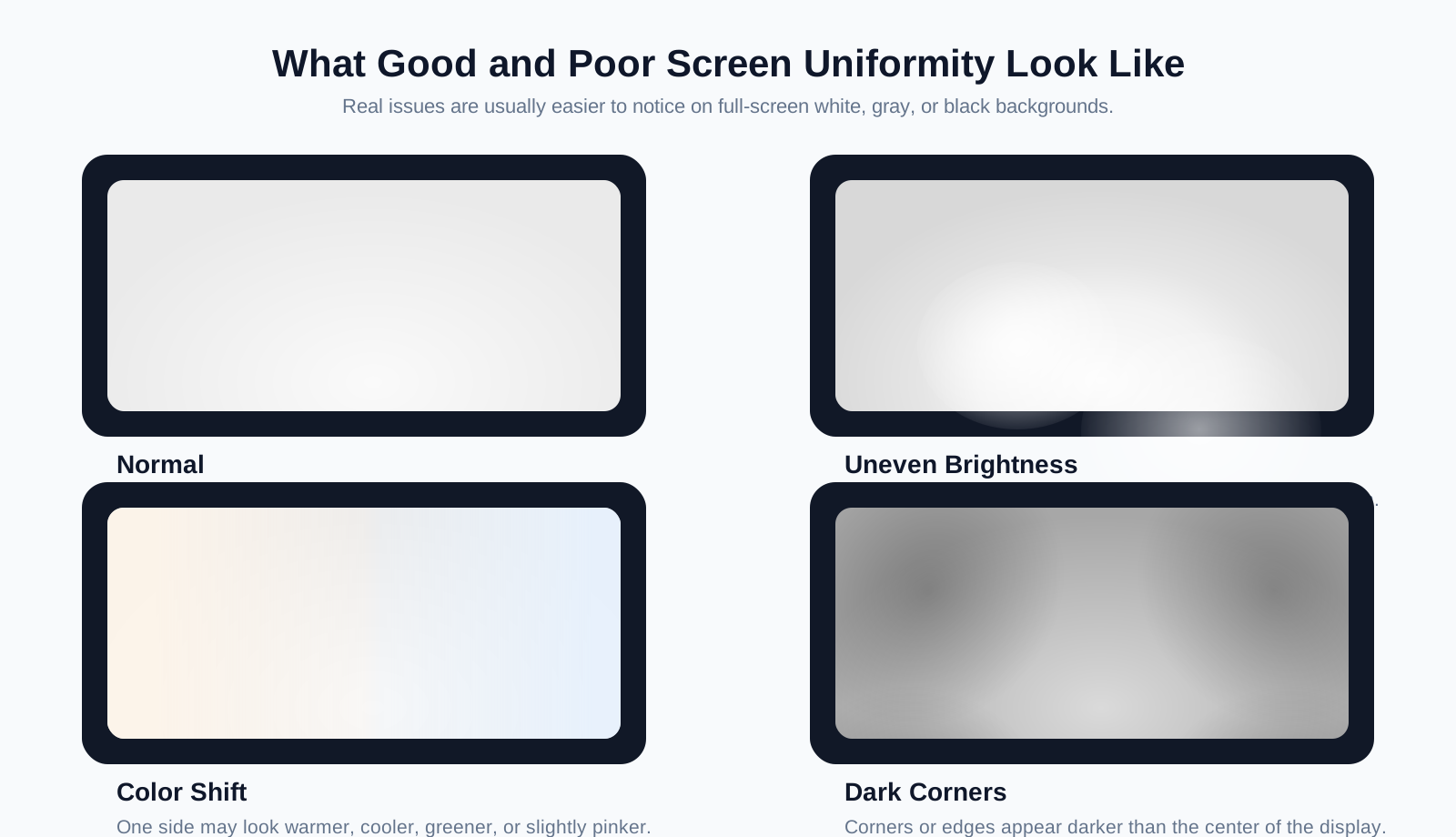
Common Screen Uniformity Problems
Uneven Brightness
Some areas of the screen appear brighter or darker than others. This is one of the most common uniformity issues and is easiest to notice on solid-color backgrounds.
Backlight Bleed
LCD monitors may show light leaking from the edges or corners when displaying black or dark images. This is caused by uneven backlight distribution.
Color Shift
Different parts of the display may show slightly different colors or tints, making whites appear warmer or cooler depending on where they are viewed.
Dark Corners
The corners of the display may appear noticeably darker than the center, especially at lower brightness levels.
Bright Spots
Localized bright areas can appear because of uneven panel pressure or backlight distribution.
What Causes Poor Screen Uniformity?
Panel Quality
Manufacturing variations can cause differences across the display.
Backlight Design
Uneven backlighting may create brighter or darker areas across the panel.
Display Technology
LCD, IPS, VA, Mini-LED, and OLED panels each have different uniformity characteristics.
Panel Aging
Displays may become less uniform over time with regular use.
Viewing Environment
Ambient lighting can make uniformity issues appear more or less noticeable.
How to Test Screen Uniformity
Testing screen uniformity is simple.
- Open the test in full-screen mode. This gives you a clean, uninterrupted view of the entire panel.
- View solid colors such as white, gray, and black. These are the most effective for exposing panel variation.
- Observe the screen from your normal viewing position. Judge the panel the way you actually use it.
- Look for visible issues. Check for bright or dark patches, uneven brightness, color tinting, backlight bleed, and dark corners.
For best results, perform the test in a dimly lit room with your monitor warmed up for several minutes.
How to Improve Screen Uniformity
While hardware limitations cannot always be fixed, you can reduce visible uniformity problems by:
- Adjusting brightness and contrast settings.
- Calibrating your monitor.
- Viewing the screen directly from the center.
- Reducing strong ambient reflections.
- Updating display settings if your monitor provides uniformity compensation.
If severe brightness or color variations remain visible, the issue may be related to the display panel itself.